IoT Pro Temperature & Humidity Module
Installation Guide
This guide will walk you through installing the IoT Pro Temperature monitoring system in cold room environments. The process typically takes 1-2 hours for a standard installation.
This installation must be performed by a qualified electrician or authorized technician only due to high voltage hazards
Before you begin
Before your first installation, complete the IoT Pro Quick Start in the office to familiarize yourself with the process
Parts Needed
1 x IoT Pro Temperature and Humidity
1 x temperature and humidity sensor
1 x 12VDC 1A Power supply
As Necessary x 2 Core 0.75mm² cable for supply
1 x 12mm HSS drill bit
Optional but Recommended
As Necessary x conduit or trunking
1 x Bond and Seal (Wurth recommended)
M6x40 A4 Stainless Steel wall plugs
Installation
For this solution the IoT Pro device should already have a 1m temperature and humidity sensor connected to it.
Process:
Locate a suitable, always on, 240V supply
Locate a safe location, close to the supply, to install the IoT Pro.
Pass a 2 Core 0.75mm² cable from the chosen supply location to the IoT Pro location
Note: Place the sensor in the middle of the room, close to a wall and not directly facing any temperature altering unit to read the actual temperature of the room, as close to the ground as possible
Fact: As temperature increases humidity will decrease and vice-versa. Humidity is higher closer to the ground while temperature is higher closer to the ceiling
Installation Tips: A good place to install the IoT Pro would be behind shelving supports. It is recommended to attach a trunking system or conduit to pass the supply from the chosen point to the IoT Pro as this can be damaged once merchandise starts to be moved in the warehouse.
Electrical Connections
Turn off the main supply to chosen supply point before proceeding
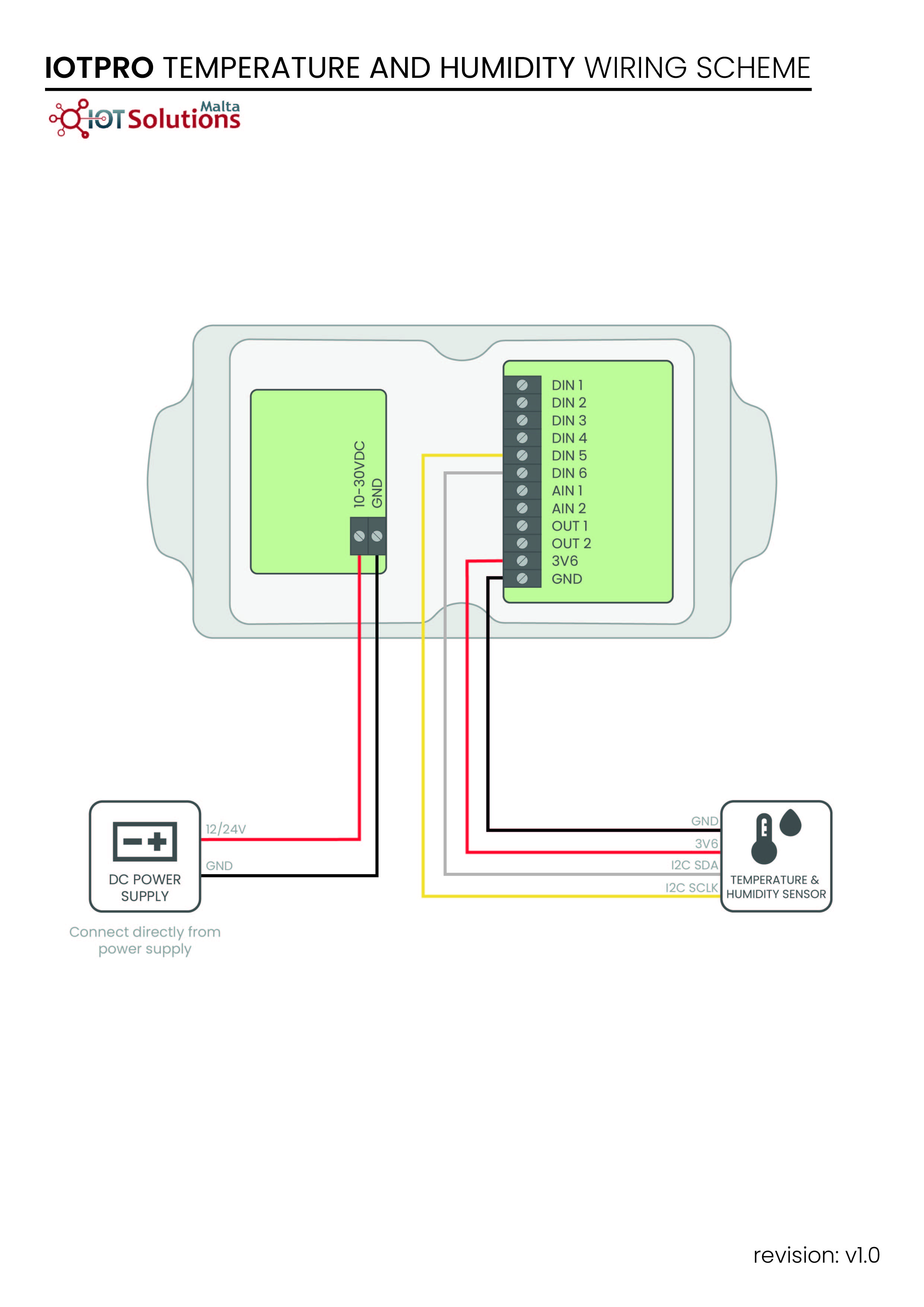
Note: A complete wiring diagram is available at the end of this guide for reference
Use a 0.75mm² 2-core cable for AC and DC supply but keep the AC supply cable as short as possible
The sensor cable in the IoT Pro should be connected as follows:
DIN5: Yellow wire
DIN6: White wire
3V6: Red wire
GND: Black wire
Power Supply
Use a 2-core 0.75mm² cable
Connect one end of the cable to the power board’s 2-pole terminal block
Connect the other end to the 12V power supply power supply
Connect the 12V power supply after the main supply you turned off
Testing and Commissioning
Initial Verification
Connect to the IoT Pro device using the mobile application
Confirm that Peripherals is OK
Verify the Application Data
Software Platform Configuration
Log In to your IoT Pro Software Platform
Navigate to Assets
Create a new asset whilst taking particular note of the following settings:
Choose the Device ID based on the label on the device
Conclusion
Double-check all connections
Switch the main supply circuit breaker back on
Activate the IoT Pro Device and Send a Message as explained in IoT Pro Quick Start
Test normal warehouse operation
Verify that all sensor readings appear correct on the dashboard
Attach the IoT Pro in the chosen location
Resume normal operation
Appendix
Wiring Diagram